The Download
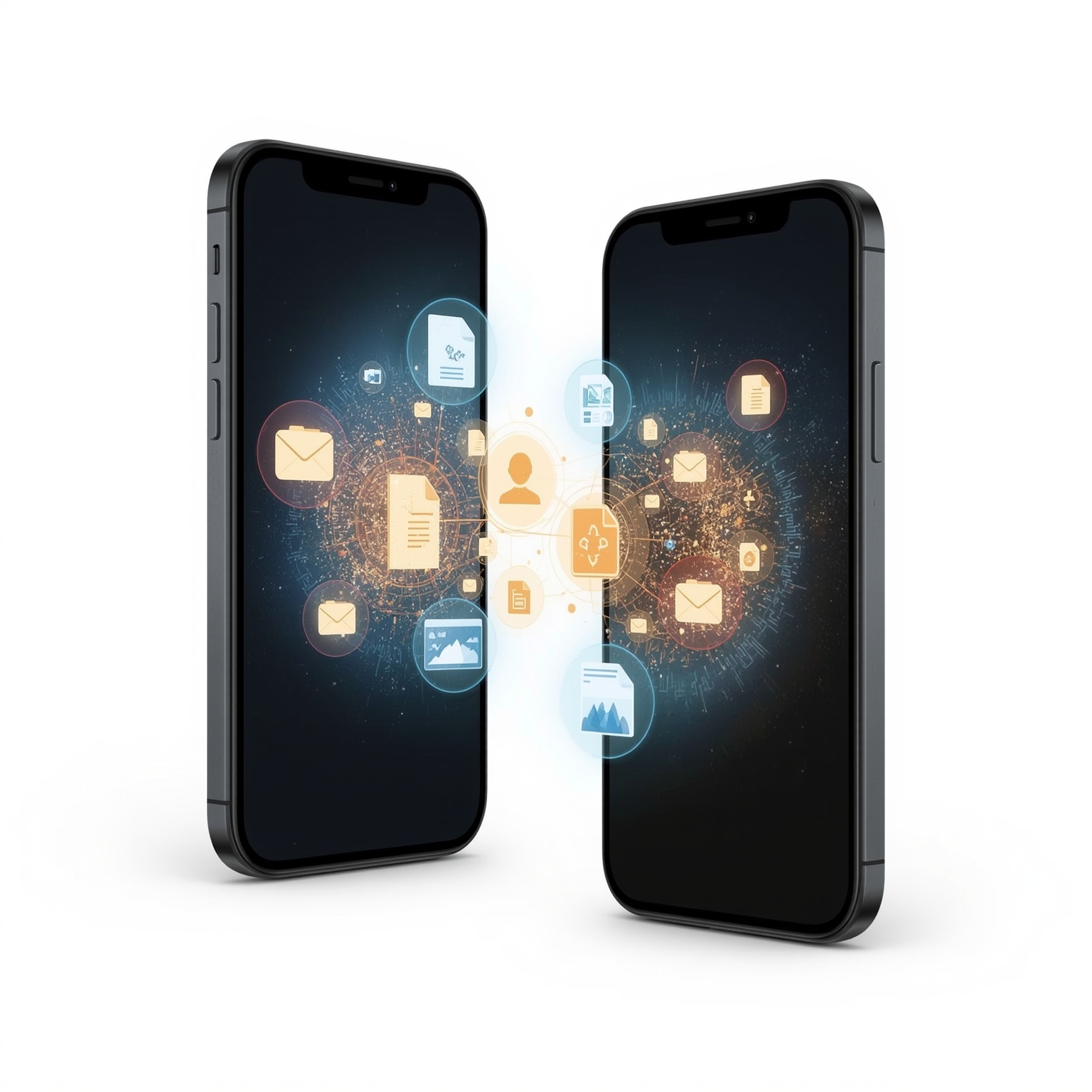
When transitioning from an Android device to an iPhone, one of the most significant concerns for users is ensuring that their personal data—especially cherished text messages—makes the journey safely across platforms. Apple’s Move to iOS application provides a seamless and efficient way to transfer your messages during the iPhone’s initial setup phase. This built-in method facilitates the wireless transfer of conversation histories, ensuring your text communications appear effortlessly within the iPhone’s native Messages app once setup concludes.
For users seeking alternative approaches or additional flexibility, several types of desktop software, such as AnyTrans, expand the capabilities of data migration. These programs can copy not only your text messages but also a variety of personal files—photos, contacts, music, and other digital content—using intuitive desktop-based interfaces. In some cases, popular third-party messaging platforms, like Facebook Messenger, automatically synchronize your conversations as soon as you sign in on your new device, relieving you of the need to manually coordinate separate transfer processes.
Ultimately, regardless of the tool you select, your text messages, along with other personal data, can accompany you seamlessly as you make the transition from Android to iPhone. This guide explores several reliable methods to achieve the same objective, carefully weighing the strengths and limitations of each approach to empower you to choose the best solution for your needs.
Using the Move to iOS App to Copy Messages from Android
Among all available options for moving data between mobile ecosystems, Apple’s free Move to iOS app remains the recommended choice for most users due to its simplicity, reliability, and official support from Apple Inc. The tool is designed specifically to streamline the migration of essential digital assets between Android smartphones and new iPhones. Move to iOS collects a wide range of information from your Android device—including text messages, photos, videos, bookmarks, email accounts, and contact lists—and transmits it via a secure wireless connection directly to the appropriate native apps on your iPhone.
To employ this feature, begin by setting up your new iPhone. When prompted to transfer data during the setup process, select the Move to iOS option. The iPhone will display clear, step-by-step on-screen instructions guiding you to download Move to iOS on your Android device. Once both devices are connected through a private Wi‑Fi network generated by the iPhone, you simply choose which categories of data to transfer. After confirming and initiating the process, the devices will communicate wirelessly, sending all your chosen data—including message threads—directly into the iPhone’s system. When the process concludes, your familiar text messages and other important data will be conveniently available on your new Apple device, ready for immediate use.
Third-Party Software Solutions for Transferring Messages to iPhone
Although Move to iOS stands as Apple’s preferred tool, it does have certain limitations. Occasionally, users find that not every piece of data—especially large files or specialized content—is successfully transmitted. In those circumstances, exploring third-party software becomes a practical alternative. A variety of programs, both free and paid, exist to handle such tasks. Tools like AnyTrans and UltFone Phone Transfer, available for both Windows and macOS, are designed specifically to facilitate the transfer of text messages, music libraries, contact information, and many other forms of personal data.
The appeal of these third-party options lies in their wide range of functionality. Some are exceedingly straightforward, doing nothing more than moving data from one device to another. Others go far beyond mere transfer functions, offering users powerful companion utilities for performing backups, locating hidden or orphaned files, and managing the overall digital structure of a smartphone. Moreover, several of these applications, including free versions, allow you to migrate message data without erasing existing content from your new iPhone—a key advantage when you wish to merge new and old data rather than start completely from scratch.
Before selecting a specific software package, conducting a brief online search for terms such as “transfer data from Android to iPhone” can reveal a broad spectrum of options. Carefully reading user reviews, compatibility notes, and feature comparisons helps ensure a safe and efficient transfer experience tailored to your preferences and technical comfort level.
WhatsApp and Other Messaging Applications
In addition to system-level transfers, users who rely heavily on third-party messaging apps—such as WhatsApp, Telegram, or Facebook Messenger—may find the process even simpler. These messaging platforms often store your conversation history in the cloud, allowing you to restore your messages automatically once you log in to the same account on a new device. For example, upon installing your chosen messaging app on the iPhone and signing in with the same credentials used on your Android device, the app may synchronize all existing chats and media automatically, recreating your familiar messaging environment almost instantly.
Nevertheless, different applications follow their own data-handling policies, meaning that some may require specific transfer tools or additional setup steps to retrieve conversation archives. Furthermore, because not every messaging app provides built-in migration support, you may need distinct utilities for each platform you use. Although this can seem inconvenient, most of these tools operate at no cost, and simple experimentation—starting with logging in on your new iPhone to check whether messages populate automatically—can quickly clarify the simplest route available.
If your message histories do not appear after signing in, a brief search for a dedicated transfer guide or tool for that specific app typically resolves the issue. Considering that communication habits differ significantly among users, employing a combination of such utilities ensures that every aspect of your digital correspondences is securely preserved during your switch from Android to iPhone.
Frequently Asked Questions
For those also concerned about migrating other forms of data, such as contacts or apps, the process follows a similarly streamlined approach. To move your contacts from an Android phone to an iPhone, you can use the same methods outlined earlier—Move to iOS, third-party desktop tools, or app-specific synchronization options—all of which effectively ensure no essential information is lost. When transferring apps between Android devices, the simplest method involves first backing up the data from your existing smartphone. Navigate to Settings > System > Backup, initiate the backup, and then, when configuring your new phone, select the copy option during the setup prompts. This procedure preserves app data, settings, and associated content, minimizing inconvenience.
By following any of these carefully designed steps, you can confidently transition to your new iPhone with all your messages, media, and contacts intact, guaranteeing a smooth start on your new device while maintaining continuity with your past digital communication records.
Sourse: https://www.lifewire.com/transfer-messages-android-to-iphone-11839386