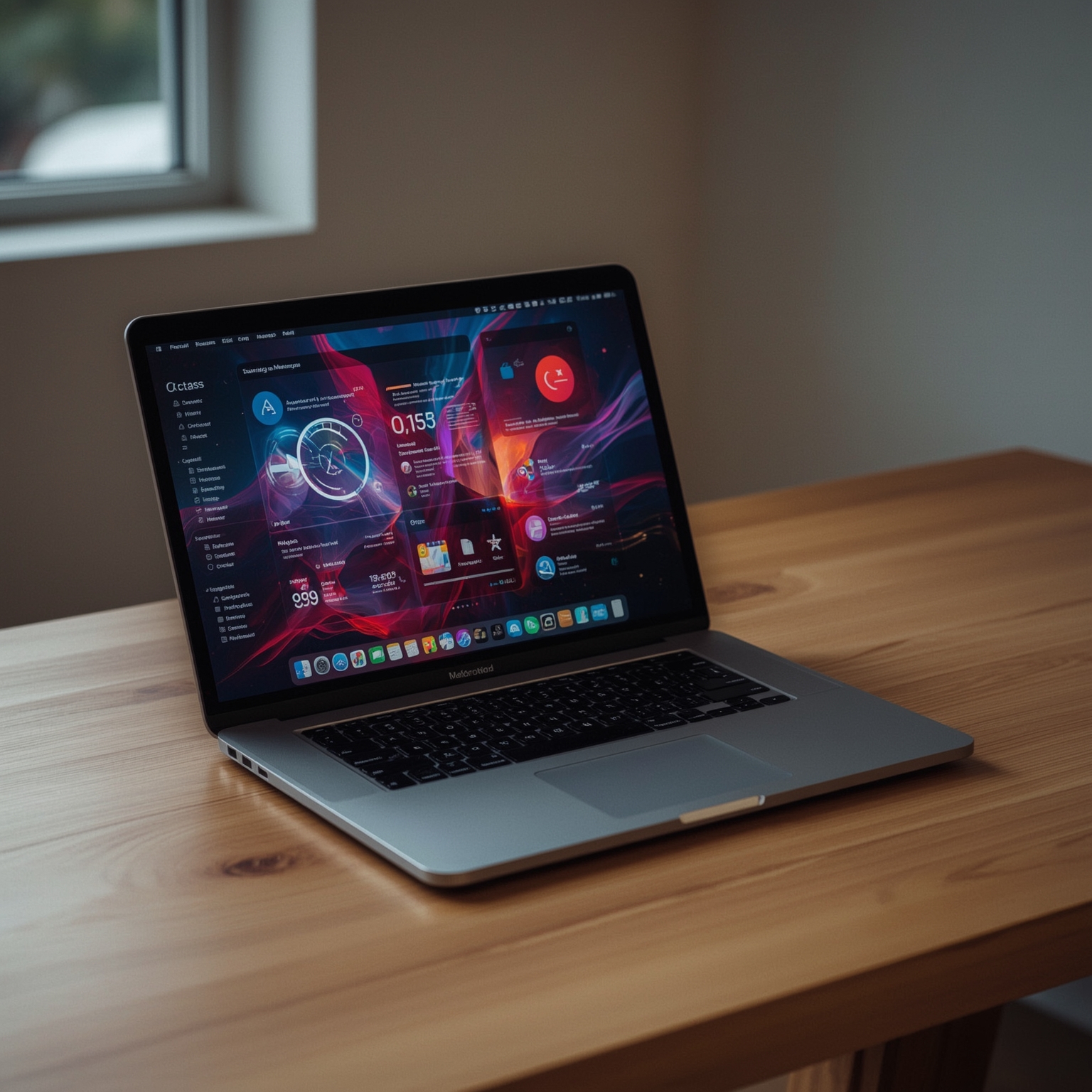
Apple has officially rolled out macOS Tahoe 26, the newest major release of its desktop operating system, making it immediately available to every Mac that meets the compatibility requirements. Having already experimented extensively with this software throughout both the developer and public beta phases, I had time to develop strong impressions of its most controversial element—the Liquid Glass user interface. My feelings toward this translucent and somewhat polarizing design language remain reserved, neither enthusiastic nor entirely dismissive. Yet after navigating the system from its earliest test builds to this final public release, I can affirm without hesitation that macOS Tahoe introduces several practical enhancements and refinements well worth exploring.
### Spotlight Reimagined: A Subtle Power-User Gateway
Spotlight, Apple’s quick-launch and search utility, receives one of its most meaningful upgrades in recent years. Long valued for its speed in opening applications through its iconic **Command + Spacebar** shortcut, Spotlight in Tahoe extends far beyond simple app launching. With consistent use and some simple muscle memory training, this once-basic feature transforms into a versatile multipurpose assistant that greatly accelerates workflow. The trick here lies in how Apple increased its breadth of capabilities without overwhelming users, which can be the case with third-party alternatives like Raycast that sometimes overload you with advanced, niche controls.
Now, when you call up Spotlight, you are presented not only with apps but also recent files, configurable shortcuts for common tasks, and an automatically maintained clipboard history. Each of these sections can be rapidly accessed with designated key commands, permitting seamless switching. The navigational system works doubly—either via numerical shortcuts or with the arrow keys, which add a graphical layer of guidance by revealing icons visually instead of forcing you to memorize their associated key numbers. Apple added a glossy, liquid-like animation that unveils these icons when the mouse hovers near the search bar, a playful effect, though arguably less functional than always displaying them.
### Clipboard History: A Quiet Yet Transformative Addition
Among Spotlight’s new panels, the clipboard history emerges as unusually helpful. This feature conveniently stores recently copied elements—whether they be text snippets, images, files, or spontaneous screenshots that never received a file designation. Anyone who has ever lost a critical piece of text after absentmindedly copying something else will immediately appreciate the utility: missing content can now be easily retrieved and reused. The clipboard buffer holds items for up to eight hours, which feels like an ideal balance between assistance and transience. However, as with any feature that temporarily caches sensitive data, users should be mindful of potential privacy risks, particularly on shared machines. Although Apple deliberately excludes saved passwords and other secure credentials, any text copied in plain format is available for retrieval by anyone who knows how to access the history.
### Phone Integration: Calls Without the Distractions of a Phone
Another noteworthy addition is the arrival of a full-fledged **Phone app** within macOS. While this may not sound revolutionary at first glance, its significance grows when you consider everyday scenarios like calling insurance hotlines, corporate support desks, or medical offices that often leave callers lingering on hold. Traditionally, one might activate speakerphone on the iPhone, inevitably leaving the handset nearby alongside a cascade of distracting notifications. By incorporating calling directly into the computer itself, macOS helps keep attention anchored where work is already happening. It’s a relatively minor adjustment in workflow, yet one that subtly promotes focus and reduces the fragmentation of digital tasks.
### Messages: Visual Flourishes and Interactive Polls
The familiar **Messages app** also receives a series of cosmetic and functional updates. Conversations can now be personalized with animated or static background designs, ranging from abstract color gradients to images of natural environments such as auroras or cloudscapes. While many competing chat platforms have long offered similar personalization options, Apple’s spin includes tasteful preloaded animations that briefly move before settling into a still image. Users may alternatively supply their own photos or even leverage Apple’s AI-powered image generation tool, although the visual output there can occasionally be unappealing. On a more interactive front, the introduction of customizable polls provides a convenient way to streamline group decision-making without leaving the chat window.
### Live Translation: Bridging Languages in Real Time
One of Tahoe’s most ambitious features is its attempt to break down language barriers through **on-device live translation**. Depending on context, the system can translate written text within Messages, superimpose caption translations during FaceTime calls, or even interpret real-time voice conversations in the Phone app. At launch, speech-to-speech translation covers English, French, German, Portuguese, and Spanish, while written translations additionally include Japanese, Korean, Italian, and simplified Chinese. In practice, this technology works well enough for straightforward exchanges but still struggles with colloquialism, rapid-fire dialogue, or mid-sentence language switching. For example, in a test call with my Spanish-speaking mother, we managed basic communication but only by deliberately pacing our conversation, pausing frequently so that the machine-generated voice could catch up. Apple’s effort is admirable, if somewhat behind competitors like Google’s advanced adaptive translation on the Pixel, which mimics natural voices through AI. Still, as a first venture for Apple, it holds meaningful promise.
### Safari: Subtle Refinements in Form and Texture
The ubiquitous **Safari browser** has been visually refreshed as part of the broader adoption of Liquid Glass. Across the interface, edges appear more softly rounded, and the entire layout feels contemporary. The navigation bar now adapts its hue gently based on the dominant color of the site being visited, though in practice the difference is often subtle, yielding mostly neutral tones such as black, gray, or white. Another understated but pleasing detail lies in the frosted transparency layered onto the top bar—content scrolls below it, gradually blurring and darkening before vanishing off-screen. The result is elegant yet appropriately restrained so as not to interfere with actual browsing.
### The Menu Bar: Transparency and Control at Your Fingertips
Perhaps more consequential than expected is the new **transparent Menu Bar**. At first, the adjustment can feel disorienting; however, once accustomed, the cleaner look emphasizes the desktop wallpaper and provides a sense of expanded space. Users resistant to transparency can revert to an opaque background, maintaining flexibility. Importantly, the real practicality arrives through the addition of a **Controls Gallery**, a consolidated interface for customizing what lives in both the Menu Bar and Command Center. Through intuitive drag-and-drop actions, common toggles and utilities can be integrated directly into the Menu Bar, making the most frequently used items no more than a click away. This arrangement renders the Menu Bar far more useful than its iOS-inspired sibling, the Command Center, which many users may largely ignore.
### Folder Customization: Personality and Organization
A smaller, yet welcome update is the ability to personalize **folder icons**. Rather than settling for a single blue tone, users may now select from seven distinct colors, providing both organizational clarity and creative expression. To further embellish folders, Apple allows the attachment of emoji symbols, ranging from colorful expressive icons to understated monochrome glyphs. The visual flexibility promotes both utility—quick recognition of frequently used folders—and individuality. The drawback is the lack of search functionality for Apple’s minimalist emoji set, forcing one to scroll manually when seeking a specific design.
### Features That Miss the Mark
Not every feature shines equally. **Themes**, an attempt to extend visual customization with tinted or transparent icons, often compromise readability and aesthetic coherence; refinement is desperately needed for consistency across Apple’s platforms. **Live Activities**, which streams data from iPhone apps directly to the Menu Bar, appears potentially useful in narrow circumstances—like monitoring a ride-share while working—but will remain invisible to many who either don’t use supporting apps or lack iPhones. Lastly, the new **Games app** struggles to justify its place: although it neatly collates Apple Arcade titles, it poorly supports external libraries like Steam. Overlay functions provide shortcuts but neglect essentials such as frame-rate counters, making the app feel underdeveloped for serious gamers.
### Final Reflections: A Stable Yet Divisive Evolution
macOS Tahoe 26 represents Apple’s continued experimentation with design and utility. The Liquid Glass aesthetic may divide the community—some will admire the clean translucence, others will find it unnecessary—but the functional augmentations, from Spotlight’s newfound versatility to integrated translation services, undeniably push the platform forward. Performance has proven rock solid throughout beta testing and into public release, save for occasional quirks like the inconsistent Games app. For cautious users uncertain about adapting to the glass-heavy appearance, patience may pay off as subsequent patches undoubtedly refine both visuals and performance. One way or another, however, Apple’s trajectory is clear: the future Mac experience will be increasingly defined by fluid, glass-like interfaces—and sooner than later, all users may find themselves acclimating to that new reality.
Sourse: https://www.theverge.com/apple-mac-os/777936/apple-macos-tahoe-26-final-release-testing-impressions-liquid-glass