The Download
Fitbit App Instructions:
To begin adjusting how your Fitbit handles notifications, open the Fitbit mobile application. Within the main screen, navigate to **Account**, proceed to the **Devices** section, select your specific tracker or smartwatch, and then move to **Notifications**. From there, look for **App Notifications**, where you can individually choose which smartphone applications are allowed to forward alerts directly to your Fitbit device.
Setup on iOS Devices:
If you are using an iPhone, you will need to confirm several system-level settings to ensure smooth delivery of alerts. Start by opening the **Settings** application and selecting **Bluetooth**. Next, find your Fitbit device in the list of paired accessories and tap on the small letter **i** icon, which stands for Information. Enable the option labeled **Share System Notifications**—this permits iOS to transmit alerts like calls, texts, and app notifications to your Fitbit. Once done, review each app individually within your iPhone’s notification preferences to control whether alerts and previews are shown. Alternatively, you may adjust all of this from the Fitbit mobile app by going to **Devices**, choosing your wearable, selecting **Notifications**, and toggling on **App Notifications** for specific applications. Do not forget to synchronize your Fitbit afterward so that these preferences are applied. Before initiating this process, make sure Bluetooth is already enabled, your iPhone and Fitbit remain close together, and that **Focus Mode** (previously known as Do Not Disturb) is turned off, as this mode will block the notification flow.
Setup on Android Devices:
For Android smartphones, the approach is very similar, though the path through the system menus differs. Begin by confirming that Bluetooth is turned on, since the notifications are transmitted by wireless connection. Disable **Do Not Disturb** mode, as failure to switch this off will prevent alerts from appearing on your wearable. With these prerequisites covered, open the **Settings** app on your Android phone. For Android 8.0 and later, navigate to **Apps & notifications**, then proceed to **Notifications**. From here, you may choose **Notifications on lock screen** if you want alerts to be visible when the phone is locked. To verify that your apps are actually permitted to send alerts, select **Notifications**, then inspect the **Recently Sent** list which displays the most recent apps issuing notifications. Once this is confirmed, open the Fitbit mobile app, select **Devices**, and pair your tracker if it is not already connected. Under **Notifications**, you can choose a primary application for each type of alert, such as calls, text messages, or calendar events. You also have the flexibility to enable or disable specific app notifications according to your preference. While the layout of these menus may appear slightly different on earlier versions of Android, the essential steps remain the same.
What Exactly Are Fitbit Notifications?
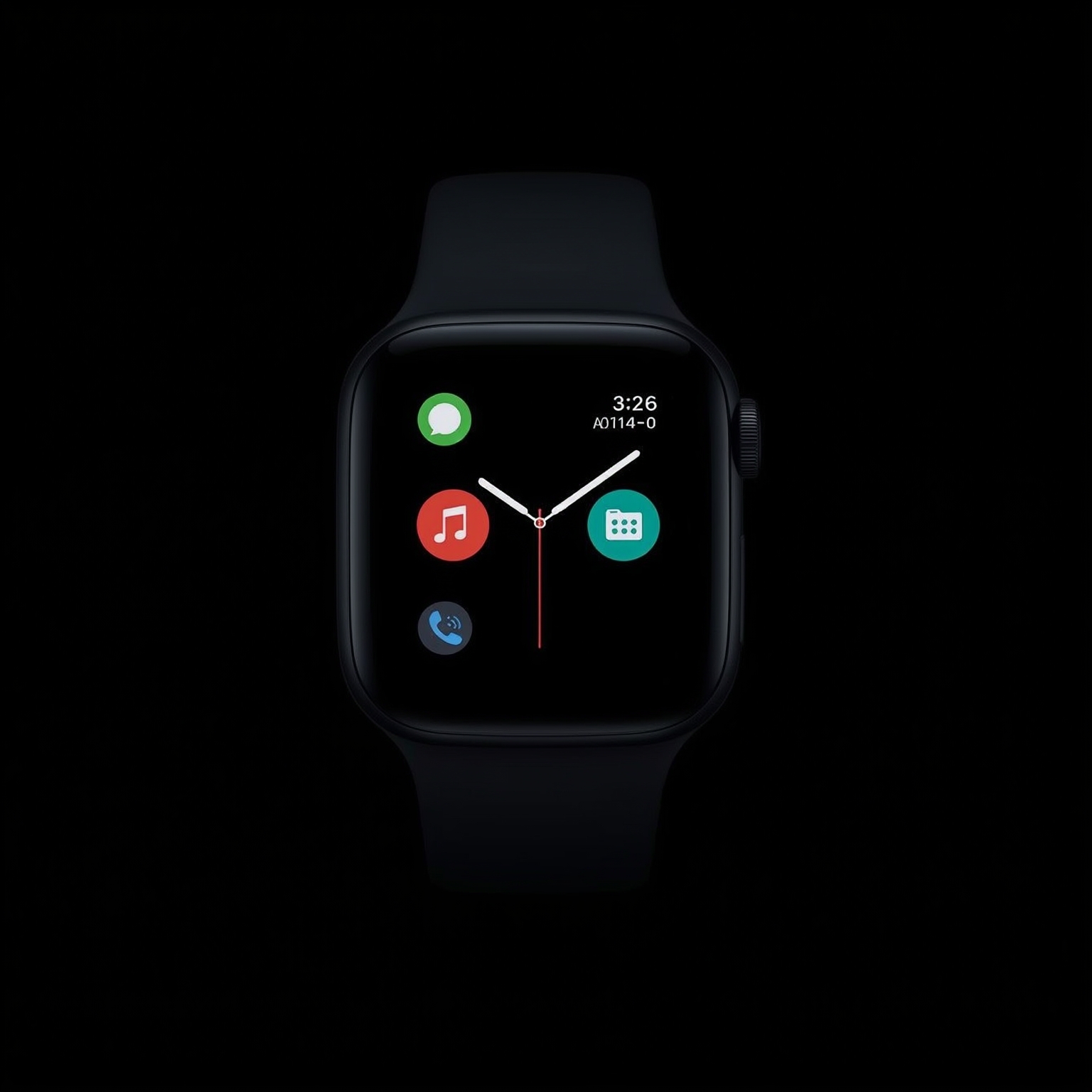
It is worth clarifying that Fitbit notifications differ from basic Fitbit app alerts that appear on your phone. Instead, this feature acts as a mirror of your smartphone’s native alerts, forwarding them to your wrist-worn tracker or smartwatch. Over the past several years, Fitbit has steadily introduced and refined notification support across most of their devices equipped with an LCD or OLED screen. However, certain variations in functionality exist depending both on the Fitbit model you own and the type of smartphone you use. In practical terms, if you possess a relatively recent Fitbit device with a screen, you can confidently expect to receive some level of notification support.
FAQ Section:
**How can I change the time on my Fitbit tracker?**
If the displayed time appears incorrect, you must first adjust the clock on the paired smartphone or tablet. Afterward, perform a synchronization so the corrected time appears on the Fitbit. For users needing to adjust the time zone, open the Fitbit app, select **Settings**, and navigate to **Date, Time, & Units**. Choose **Time Zone**, turn off the option to automatically set the time zone, and then manually select the correct region.
**How do I sync my Fitbit tracker?**
Synchronization is necessary to transmit data between your Fitbit and the companion app, allowing clock settings, notifications, and activity statistics to align properly. The process involves ensuring Bluetooth is enabled, opening the Fitbit application, and manually triggering a sync if it does not occur automatically.
**How do I reset my Fitbit tracker?**
Reset procedures vary depending on the model you own. For certain trackers such as the Fitbit Flex or the Fitbit Charge, a reset requires a manual action while the device is attached to its charger. In contrast, other Fitbit models are reset by removing the tracker from the Fitbit account through the mobile application or by selecting specific reset options found within the phone’s settings. Always check the instructions for your exact model before performing a reset.
By carefully following these steps and verifying that the appropriate system permissions are enabled, you can ensure that important calls, text messages, and app alerts reach your wrist seamlessly, enabling you to remain both connected and active without constantly reaching for your phone.
Sourse: https://www.lifewire.com/set-up-fitbit-notifications-11780507